





Do you struggle to remember all of the passwords to everything? I had them saved on my Google Chrome, but then my computer was hacked! Is the Betzolution really to keep them written on paper that can be lost or stolen? 🤔
With my passwords saved in Chrome on the computer, it just saved my passwords in a file. Someone gained access to my file system and with it all of my accounts! This event led me to find the Betzolution I give to you today. Even if the attacker can make an exact clone or steals your device, they cannot login to Bitwarden without your biometrics/PIN, or password and two-factor. 🎉
Bitwarden is an industry leading password manager that has successfully solved the headache that is passwords. The software is open source, meaning expert programmers from around the world constantly scrutinize its security while making improvements on accessibility, and utility. What this means for you is that you can forget all of your passwords and leave the work to Bitwarden! On any device with Bitwarden when you arrive at any app or website, Bitwarden is right there ready to fill in your username and password. If you have Biometrics like FaceID or a Fingerprint Reader touch that and go, or enter a 4 digit PIN to unlock the vault. Touch the username and click login. Life has never been easier. 🙌
How does Bitwarden keep my passwords safe? 🔐
The way Bitwarden works is you have a vault file which contains all the information you have saved inside of Bitwarden. The vault file remains encrypted on your device storage and in the Bitwarden cloud with passwords only being decrypted in your devices’ memory– and only when you have Bitwarden unlocked . This means even if the attacker has access to your file system, nobody including Bitwarden can decode your passwords without your secret keys! What a time to be alive!
The vault encryption key is partly your password, so it’s recommended to make your password long and complex to increase security. You will only enter this password on rare occasion or with new devices. After you login choose to use biometrics (FaceID, Fingerprint) or 4 digit PIN and use that to unlock your vault. Finally, a safe solution that ends all concern about passwords!
I want in! How do I get started? 🚀
The first step to creating a secure password is to pick 3 or 4 random words, and then have some numbers and a symbol. These broken sentences can be funny and memorable, yet are hard for a machine to guess. Relevant xkdc comic:
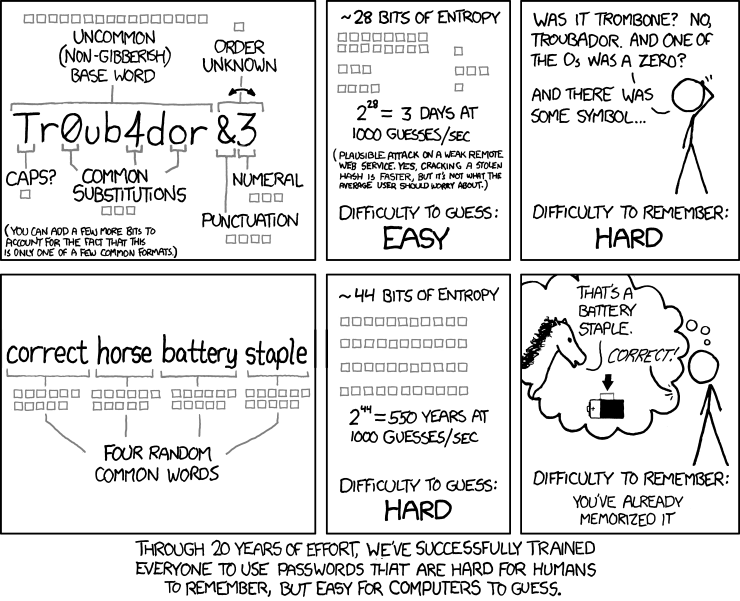
(Source) https://xkcd.com/936/
Once you have the password in mind, open a new tab to bitwarden.com and complete the signup process to create a new account. Be sure to write down your password on at least two sheets that you can store in two safe locations. Should you lose these sheets, no one will be able to recover your account, and it will be lost forever. 😡
What if someone gets my password somehow? ⌨️
It is recommended to also enable two-step login or 2FA. The easiest way is to use an Authenticator App on your phone to generate a one-time time-based 6 digit passcode at the time when you login. This requirement of two steps ensures that even if one step is compromised, your account remains secure.
Time Based Authenticator Apps work on your phone by having a pre-shared secret, a long string of random text, and the current date and time. The app uses the text string along with the date and time to perform some complex math resulting in a new 6 digit code every 30 seconds. You will only interact with this text string during new phone/Authenticator App setup which makes it practically impossible to intercept. The 6 digit code is what you will use to login to Bitwarden.
Should an attacker have a key logging program and capture you logging into Bitwarden, the 6 digit code will be expired when they attempt to login. The text string used to set up the Authenticator App is never revealed to anyone, so your account remains secure. Safe from keyloggers AND data miners!? It doesn’t get any better than this! 🙌
Setting up 2 Factor Authentication 📲
Start by using your computer to log into bitwarden.com with your Bitwarden account. On the left hand side navigate to Security, then pick Two-Step login. From this screen, next to Authenticator app click Select, a QR code and some long text string should display on the screen.
Using your mobile phone, download the “Google Authenticator” application. Open this application and sign in using your Google account. Pick to Add a Code, then choose QR code and scan the code on your computer. On the computer, this code also displayed as the random text string.
Write this text string down on the two sheets of paper so that you can activate a new phone Authenticator App to log you into Bitwarden should you lose your device. The only time this code is used is to setup a new phone with the Authenticator App. If you lose this random text string and lose your device, you have lost your account. After you have written down the text string, complete the Authenticator App setup by entering the 6-digit code into the computer.
There is an emergency recovery code which Bitwarden should recommend that you record on the main Two-Factor settings page. Write the password, 2FA activation code, and the emergency recovery code down clearly labeled on the two sheets of paper and store them safely in two locations. Keeping this information safe is your responsibility. No one in the world can access your vault without this information. 🔏
The hard part is done! Kinda… 😅
Now you can safely start using Bitwarden to store all of your passwords! Visit the Downloads page to download the browser extension (Chrome, Firefox) on your computer, and the mobile app on your phone. You’ll use your email address, password, and Google Authenticator app to login to each device or browser plugin. Visit the settings inside each Bitwarden to enable the Biometrics or to unlock with PIN so that you will not need to enter the password and 6 digit code every time.
I already have my passwords saved in Chrome, Apple, etc 🔐
If you currently use another password manager, like Chrome, Firefox, Lastpass, Apple, etc. visit this page for further details on how to import your previous passwords. The steps to migrate from every password system vary, and some are more complicated than others. Do not be deterred, Bitwarden will change your life! 🤯
If you need help to import your passwords, or with using Bitwarden, please call or text me at 281-402-3893! 📞🙏
You can also schedule me for a date and time to have a one-on-one consultation.
Change your passwords, change your life!
In the end, we still write down our password on pen and paper. – Chris Betzolutions